Organize
Organize your projects and conversations
Keep your Workspace nice and tidy by organizing your projects and conversations into folders.
New Projects and Child Projects
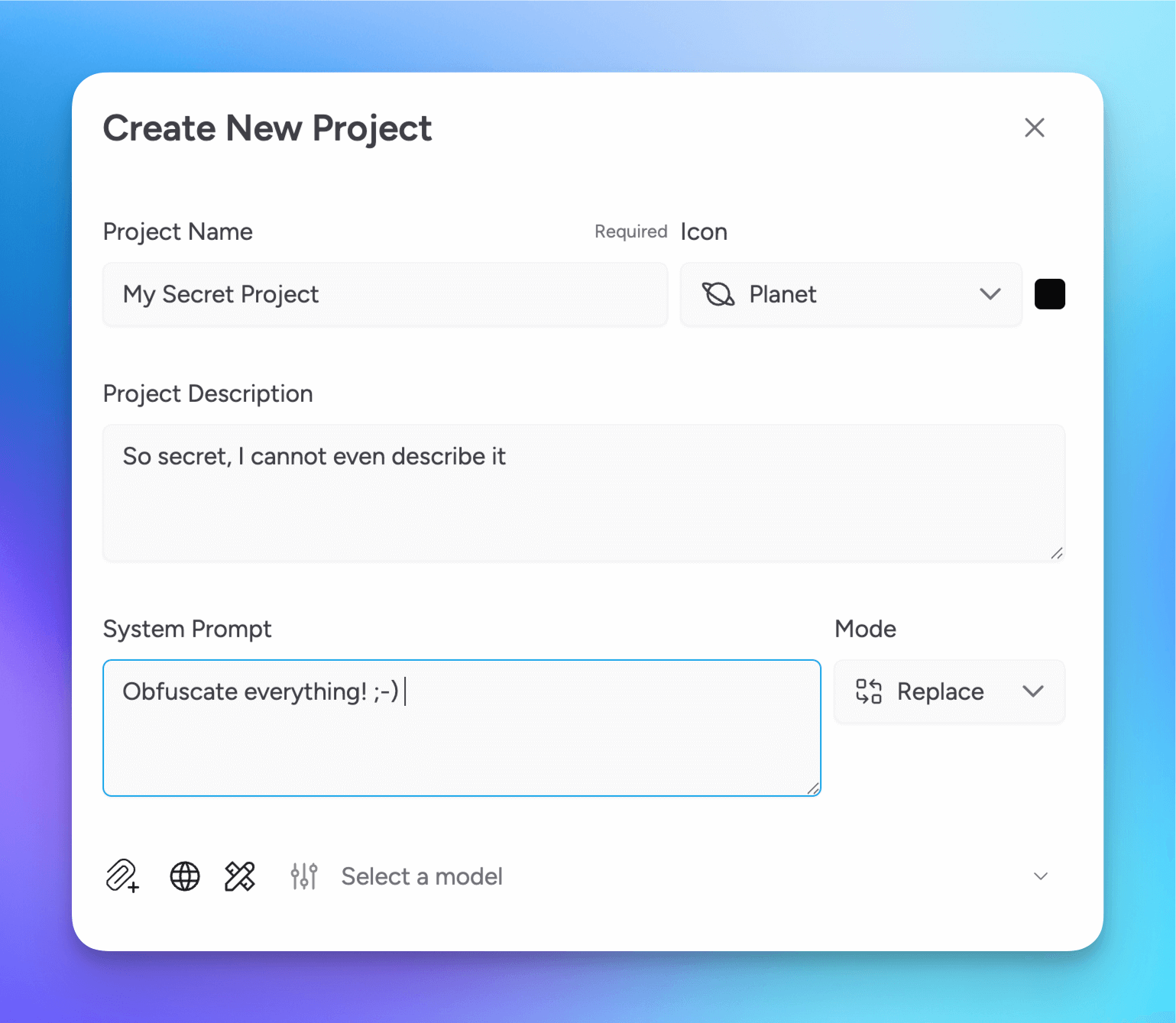
This is your classic folder and subfolder structure.
Add a new Project by select the menu icon next to New Conversation and then select Create New Project.
To create a new Child Project, select the ellipsis icon next to the Project Folder and then select Add New Project.
Both of these options will open a new window where you can define your project presets, such as project name, description, system prompt, and any tools and add-ons you want to enable.
Organizing Conversations
Select the ellipsis icon to perform the following actions on a conversation:
- Edit Conversation title
- Clone Conversation
- Move Conversation
- Bookmark Conversation
- Copy/Move Conversation to a Workspace
- Convert to Forge Mode
- Delete Conversation
You can also hold down Shift or Ctrl (or Cmd on Mac) and select multiple conversations to perform actions on them in bulk.
Bulk actions include:
- Moving Conversations
- Deleting Conversations
Recent and Pinned Conversations
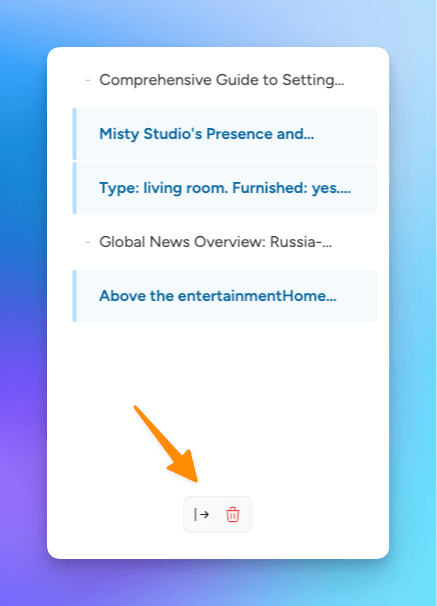
Your most recent conversations are listed under the Recents folder on the Projects sidebar.
Pinned conversations are also listed under the Recents folder. You can pin a conversation by selecting the pin icon in the ellipsis menu for that conversation.
Projects and Conversations Sort and Display
Toggle the filter icon to display the search field and sort and display button. Click the Sort and Display button to show available options.
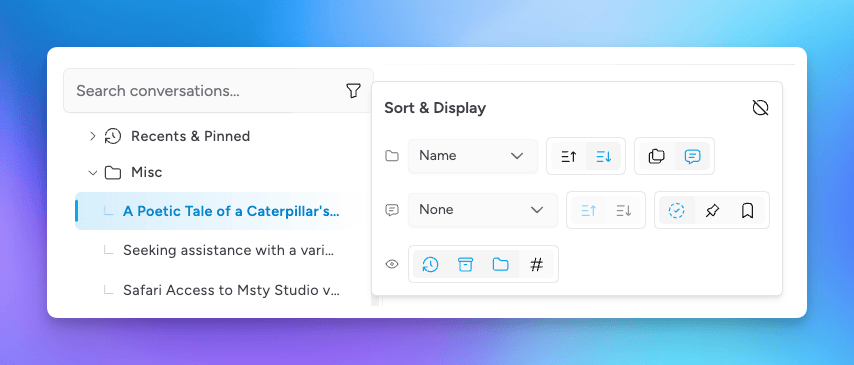
At the project folder level, you can:
- Select the primary sort option - by project name or created date
- Order ascending or descending
- For project with child projects, display nested folders first or conversations first
At the conversation level:
- Sort by conversation title, created date, or latest activity date
- Order ascending or descending
- Show pinned conversations at top or bookmarked conversations at top
Toggle visibility for:
- Recents folder
- Archived folder
- Empty folders
- Number of conversations within a folder
Promote Child Project to Root Level
If you need to move a child project (and all its conversations and subfolders) to the root level of your workspace, you can do so easily.
Select the Folder
Click on the folder you want to move.
Open Folder Options
Click the ellipses icon (⋯) next to the folder.
Move to Root
Select Move folder to root from the menu. The folder and all its children will be moved to the root level of your project structure.
This action preserves the folder's entire subtree structure when moving it to root.
Archive Old Conversations
In Settings > General > Conversations, you can auto and manually archive conversations older than the number of days you define.
Archived conversations are not deleted and will appear in the Archive folder in the main project folder tree.
If you do not see the Archive folder, then enable it in the view following the instructions in the Projects and Conversations Sort and Display section above.
Related Resources
Videos