Quick Start
Get started with Msty Studio in a few easy steps
Quick Start is the fastest path for new users to go from install to first chat.
Choose Your Path
- Desktop (recommended): Best path for most new users and supports local model workflows.
- Web (Aurum): Use Msty Studio in the browser with remote providers or a Desktop/Sidecar connection.
Msty Studio Desktop Quick Start (Recommended)
Install and open Msty Studio
Download Msty Studio Desktop, install it, and open the app.
Choose how you plan to use Msty Studio
Select Just exploring, For work, or I'm a developer. Msty uses this choice to tailor the recommended model and optional starter resources.
Connect your first model
Choose either:
- Recommended local model: Msty checks your hardware, recommends a compatible local engine and model, and lets you adjust the recommendation from Light to Powerful before downloading.
- Online provider: Connect OpenAI, Claude, xAI, Gemini, OpenRouter, or another online provider. Add at least one model to the provider before continuing.
Local setup displays service and model download progress. You can continue into the app while a local model finishes downloading in the background.
Choose what to do first
After model setup, choose a starting workflow:
- Open a normal conversation
- Connect an image model and open Media Studio
- Import the Msty Studio Docs Knowledge Stack and create the Msty Clippy persona
- Install suggested personas based on your selected intent
Start working
Msty opens the selected workflow with your model and starter resources ready to use.
Msty stores your data locally on your device. Data does not sync automatically between devices.
Msty Studio can install and manage Ollama, MLX, or Llama.cpp services for local models. The recommended engine depends on your operating system and hardware.
Optional: Install Local AI Services From an Archive File
If the standard service installer is not suitable for your system, use the service settings to install a compatible local archive.
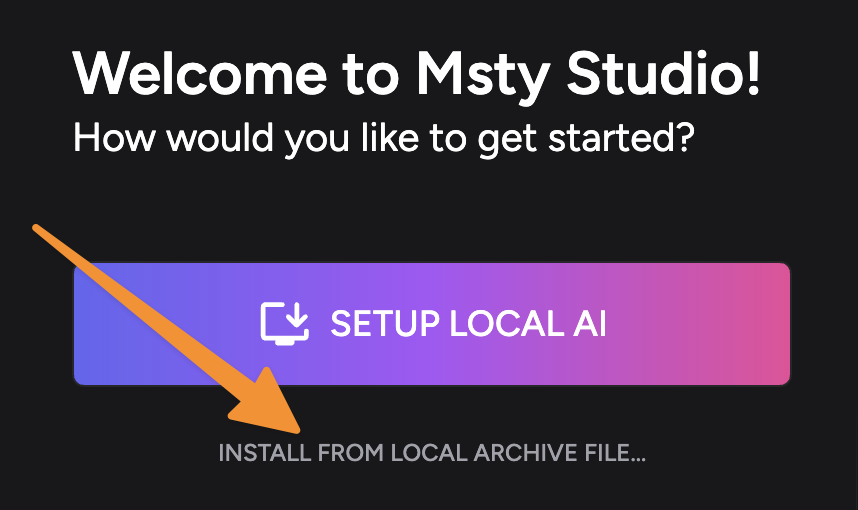
For Ollama:
- Download the correct archive for your OS from Ollama Releases.
- Open Settings > Local AI > Service Version and choose the archive file option.
- Select the downloaded archive file.
If Local AI setup fails with the default installer, archive install is a useful fallback.
Msty Studio Web Quick Start Aurum Perk
- Purchase an Aurum license and keep your license key handy.
- Open https://msty.studio.
- Enter your license key and click Next.
- Add a model provider:
- Add a remote provider (OpenAI, Anthropic, Gemini, and others)
- Or connect Studio Web to Msty Studio Desktop or Msty Sidecar
- Finish setup, choose a starting workflow, and run your first prompt.
Safari user? Safari is not directly supported by Msty Studio. You can still connect through Remote Connections using tunneling.
Next Steps
- Managing Models to add providers, install local models, and monitor downloads
- Settings to customize behavior and defaults
- Remote Connections to connect Web and Desktop