Media Studio
Create and refine images and videos with context-aware generation workflows
Media Studio is a dedicated session type for creating images and videos with persistent context, history, and comparison tools.
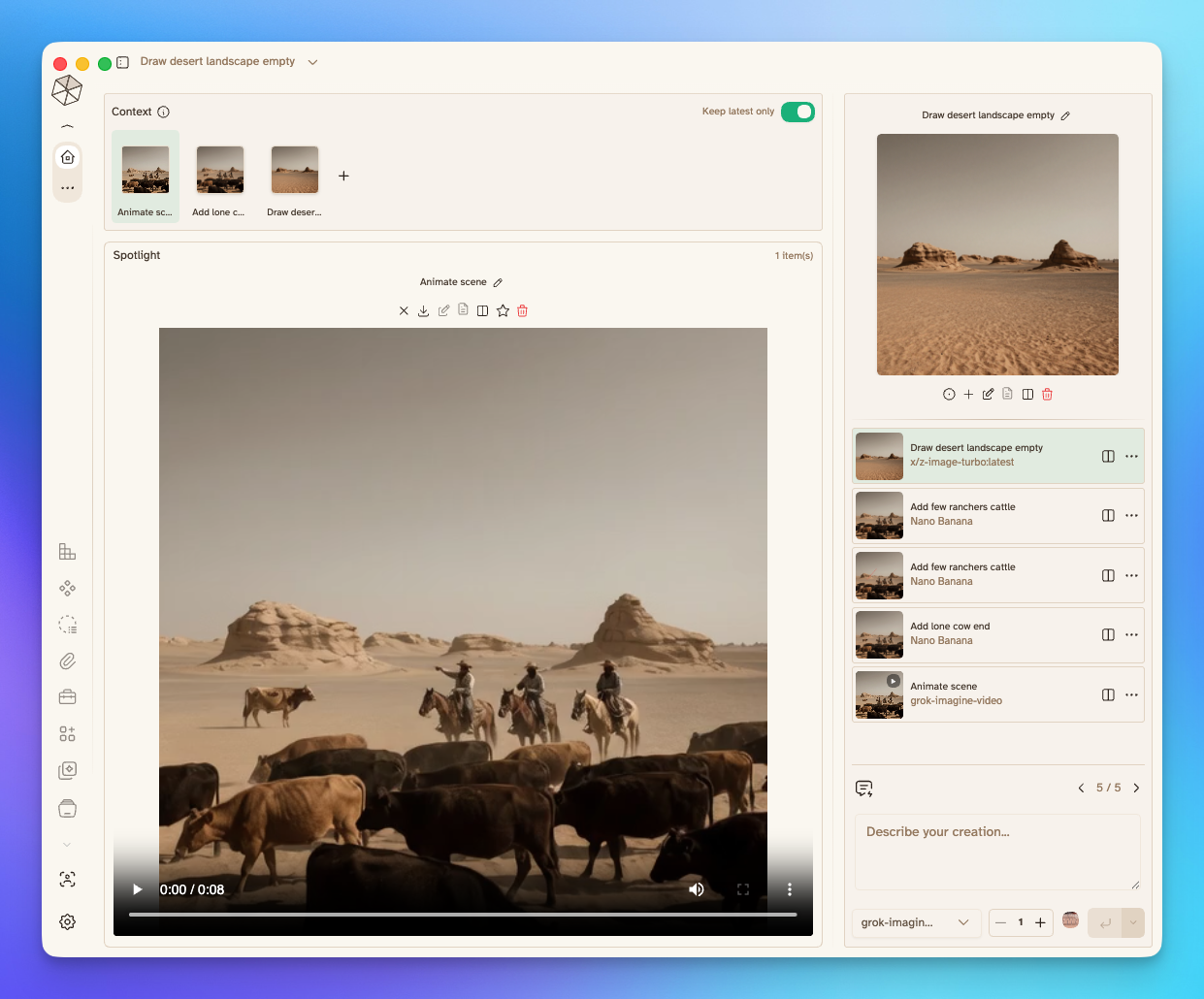
Start a Media Session
Create a new session
From New, choose New Media Session.
Start from an existing attachment
Use Open in Media Studio from message attachments, or Start New Media Session from Context Studio.
Configure and generate
Enter a prompt, choose an image/video model, set outputs per run, then generate.
Context Workflow
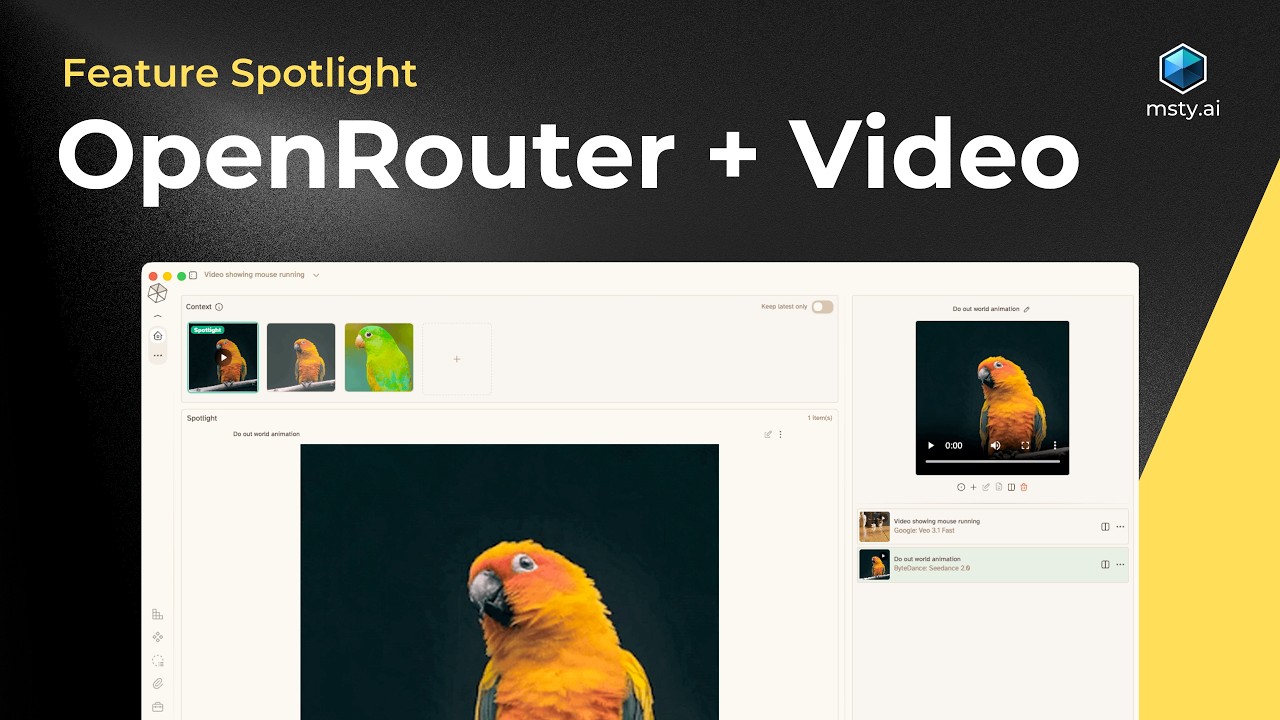
- Add context by drag-and-drop, paperclip, or screenshot capture.
- Move items between Context, Spotlight, and Compare.
- Enable Keep latest only to retain just the newest generated media in context after each run.
- Images, videos, and documents can be attached as context references.
- Reusable Context Studio items can be added as media context without uploading them again.
Context Preview Labels
Context previews make each item's role clearer:
- Image and video previews display a media-type label
- Context items display their file name below the preview
- The active Spotlight item displays a Spotlight badge
- Supported video models display Start and End controls on eligible image context
Use Start to assign an image as the first frame of a supported video generation. Use End to assign an image as the final frame when the selected model supports end-frame interpolation.
Start and End controls only appear for compatible video models.
Generation Workflow
- Select from media-capable models configured in Model Hub image generation.
- Set how many outputs to generate per run.
- Star a model to keep it as your Media Studio default.
- If no media models are configured, Media Studio offers a direct path to Model Hub.
Spotlight, History, and Compare
- Spotlight is your main working canvas for selected outputs.
- History stores generated outputs for quick reuse and navigation.
- Compare lets you review up to 3 outputs side by side.
- Each history item supports fast actions such as:
- Add to Spotlight
- Add to Context
- Compare toggle
- Download
- Rename title
- Delete
Editing and Iteration
- Use Edit Image on image outputs to annotate and save a new version.
- Edited versions are added back to history and can be reused as fresh context.
- Prompt history is saved in-session so you can iterate quickly on prior prompts.
Video Support
Video generation in Media Studio currently supports:
- xAI
- Google Veo
- Seedance
- OpenRouter video models
Available context-image and Start/End frame capabilities vary by model.
Export and Import Media Sessions
Media Studio sessions use the normal conversation export workflow. Export as .mstyconv when the session contains generated images, videos, or other large attachments.
Exports preserve the saved Media Studio session state and referenced media when attachment files are included. See Conversation Export and Import.